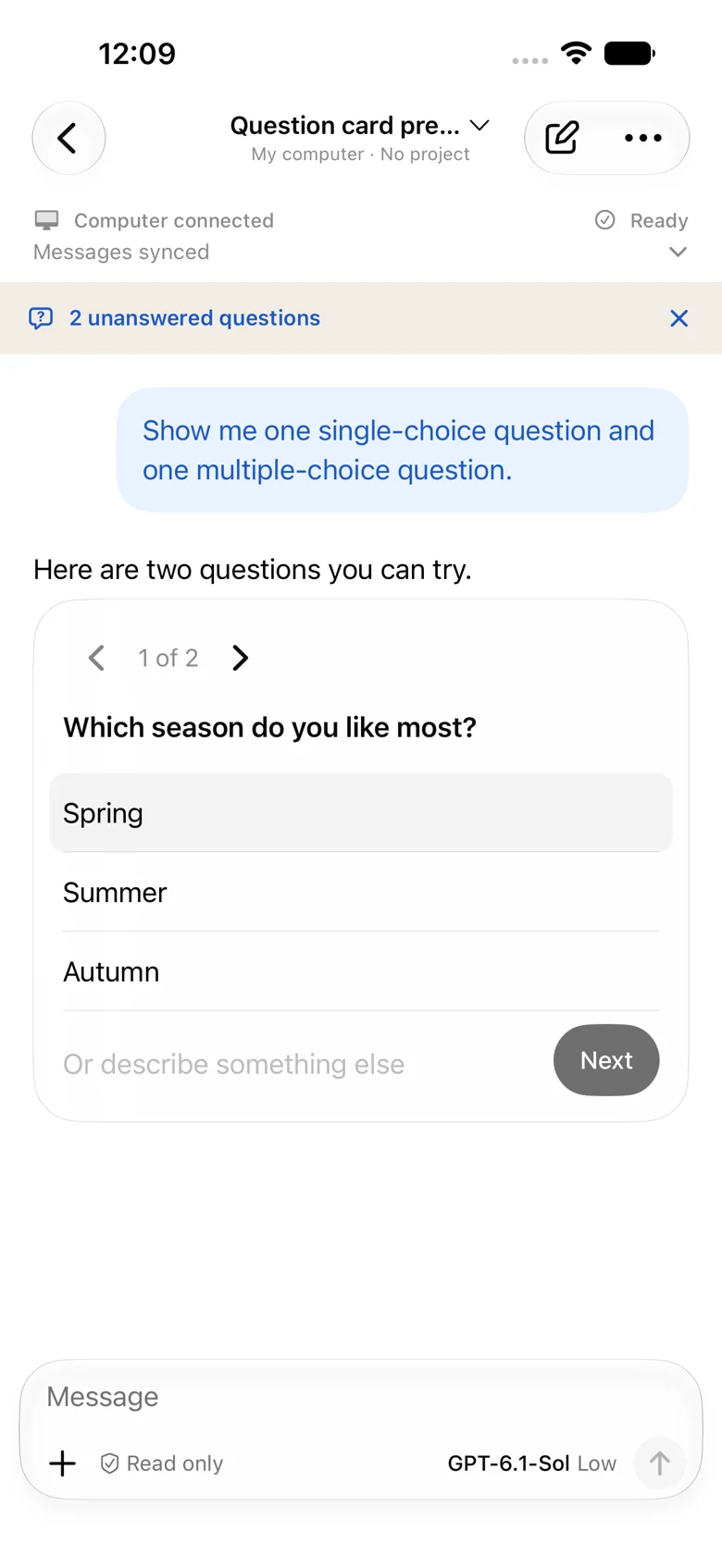
On your iPhone
Open your TestFlight invitation and install Pocket Vibe.
THE POCKET VIBE GUIDE
Two apps. One QR scan. An end-to-end encrypted connection to your Mac or Windows PC.
Show me how to pair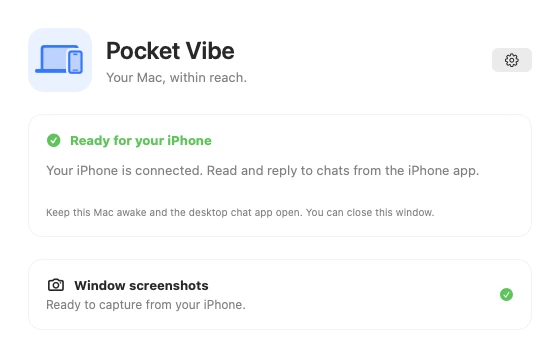
FIRST, THE TWO APPS
Open your TestFlight invitation and install Pocket Vibe.
Install the companion and open your supported desktop chat app.
Pocket Vibe works with supported native Codex desktop builds on Mac and Windows, including Mac installations named ChatGPT that use the Codex runtime. It does not connect to arbitrary ChatGPT web or cloud conversations. Keep your desktop app updated and confirm it can send messages. If Pocket Vibe cannot connect, follow the message on its computer dashboard or contact support to check your desktop version.
If you are unsure about your desktop app, check compatibility with support before arranging access. Keep both Pocket Vibe apps updated.
You do not need the same model account on iPhone and computer. Pocket Vibe uses the desktop's existing model configuration. Model access, API charges and any desktop subscription remain separate.
CONNECT WITH ONE SCAN
Use the same steps for your first computer and a computer you connected before. Keep both devices online.
Open Pocket Vibe. The first connection QR code appears automatically on Mac and Windows. For another phone, use Paired iPhones → Add iPhone on the computer’s main page.
Keep the QR code private. It expires after ten minutes.
Choose Scan computer QR code. Pocket Vibe checks your saved connection and computer allowance automatically, then verifies the encrypted connection. The first two computers are free, without Apple purchase verification.
No connection code to type. An activated computer keeps its computer place. Saved chats and drafts remain available.
Install Apple's TestFlight app, accept your invitation and install Pocket Vibe. If you do not have an invitation, contact support about access. There is no public App Store download yet.
On Mac, use the Apple silicon DMG, drag Pocket Vibe into Applications and launch it there. On Windows, run the Setup installer and open Pocket Vibe from Start. Open Codex on the same native operating system and confirm it can send a message normally.
Open Pocket Vibe on your computer to see its first connection QR code. To add another phone, use Paired iPhones → Add iPhone on the computer’s main page. On iPhone, choose Scan computer QR code. The same flow connects new and previously connected computers. The first two computers are free, without Apple purchase verification. Subscribe to Pro only when you need up to five computers. Only verified endpoints can decrypt chat content.
On iPhone, allow Camera access to scan an invitation, or paste it without camera access. Allow Local Network access to use direct Wi-Fi connections. Encrypted relay remains available if direct access is unavailable. Notifications can show locally decrypted chat titles and completion or question alerts. For screenshots, choose Enable under Window screenshots on the Mac and allow Pocket Vibe in System Settings → Privacy & Security → Screen & System Audio Recording. The wording can differ by macOS version. Return to Pocket Vibe to check for Enabled. On Windows, keep the Codex window visible and not minimized. Windows has no Mac Screen Recording or Codex Micro permission controls.
Open a chat on iPhone and read its history. Send a short follow-up, then check the response. Choose Open on computer and request a capture from Screenshots in the sidebar. Keep the computer awake and online for continued access. You can reopen the computer setup guide from Settings on iPhone.
Use the iPhone app to connect up to two computers for free. If setup is interrupted, keep both apps open and retry with the same QR code. If it expires, show a fresh QR code on the computer. A computer that completed activation keeps its computer place until explicitly deactivated.
MEET THE DESKTOP COMPANION
When the dashboard says Ready for your iPhone, open a chat on your phone and send a message.
On both platforms, scroll the main page to manage paired iPhones, choose Open at login, check for updates or pause remote access. Mac offers Dock or menu bar display. Windows offers Show in taskbar and a system tray icon. Mac permission controls appear only on Mac.
Closing the window keeps access running. Quitting the app stops it.
Closing the window keeps remote access running. Quitting Pocket Vibe stops it. The app does not keep a sleeping or offline computer available.
NOW, MAKE YOURSELF AT HOME
A PLACE FOR EVERYTHING
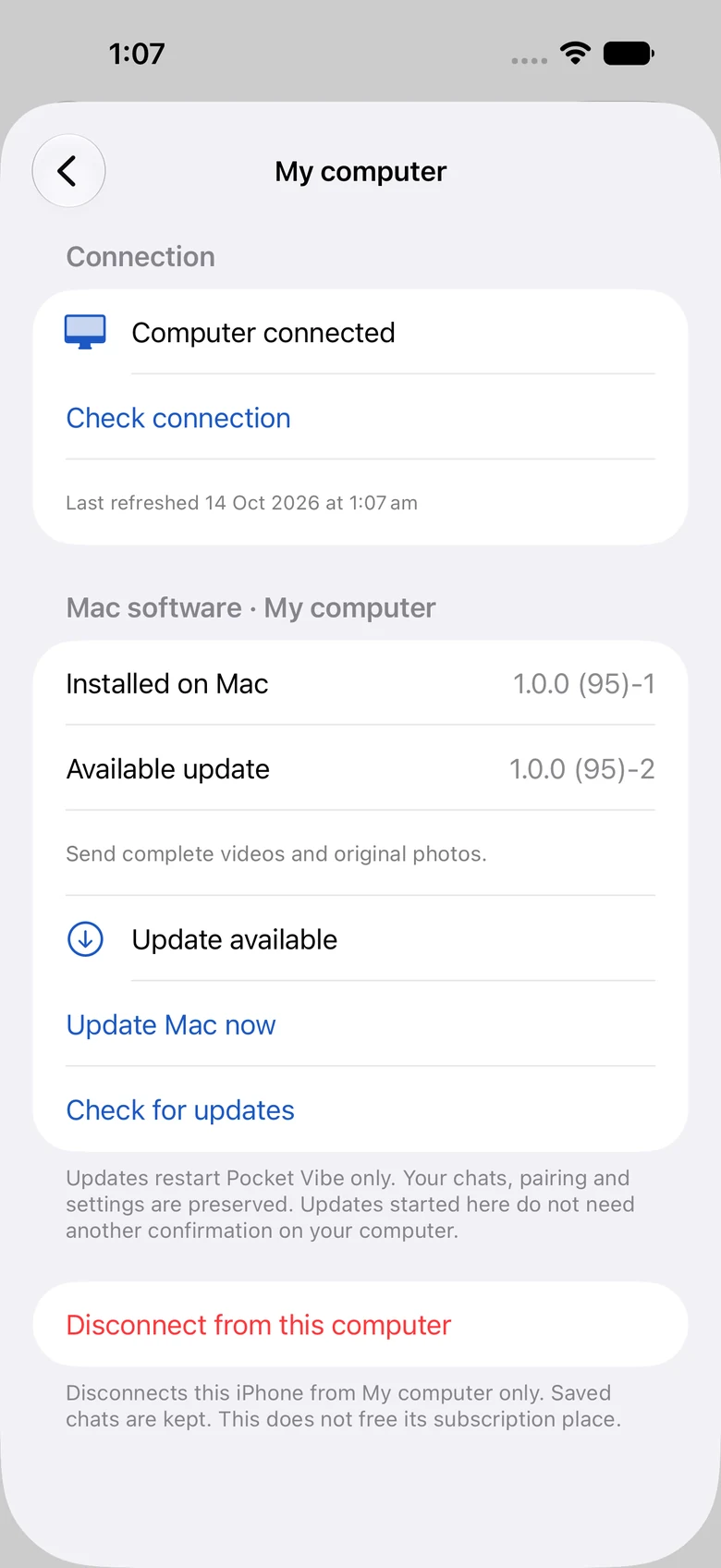
Open Settings. Your computers are listed under Connections. Pick one to check its connection, see its version or install an update.
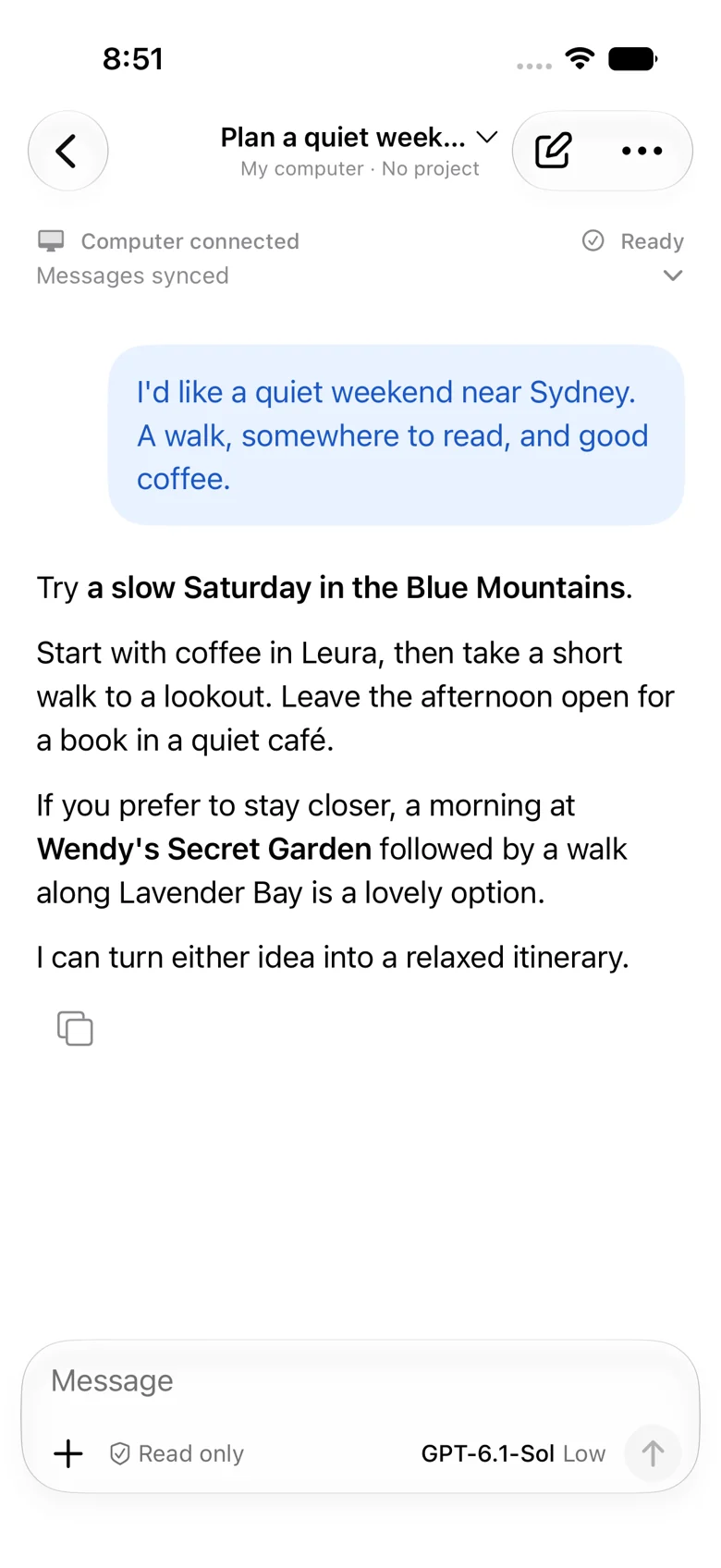
Your conversation and draft stay where you left them.
By the input: model, effort and permissions.
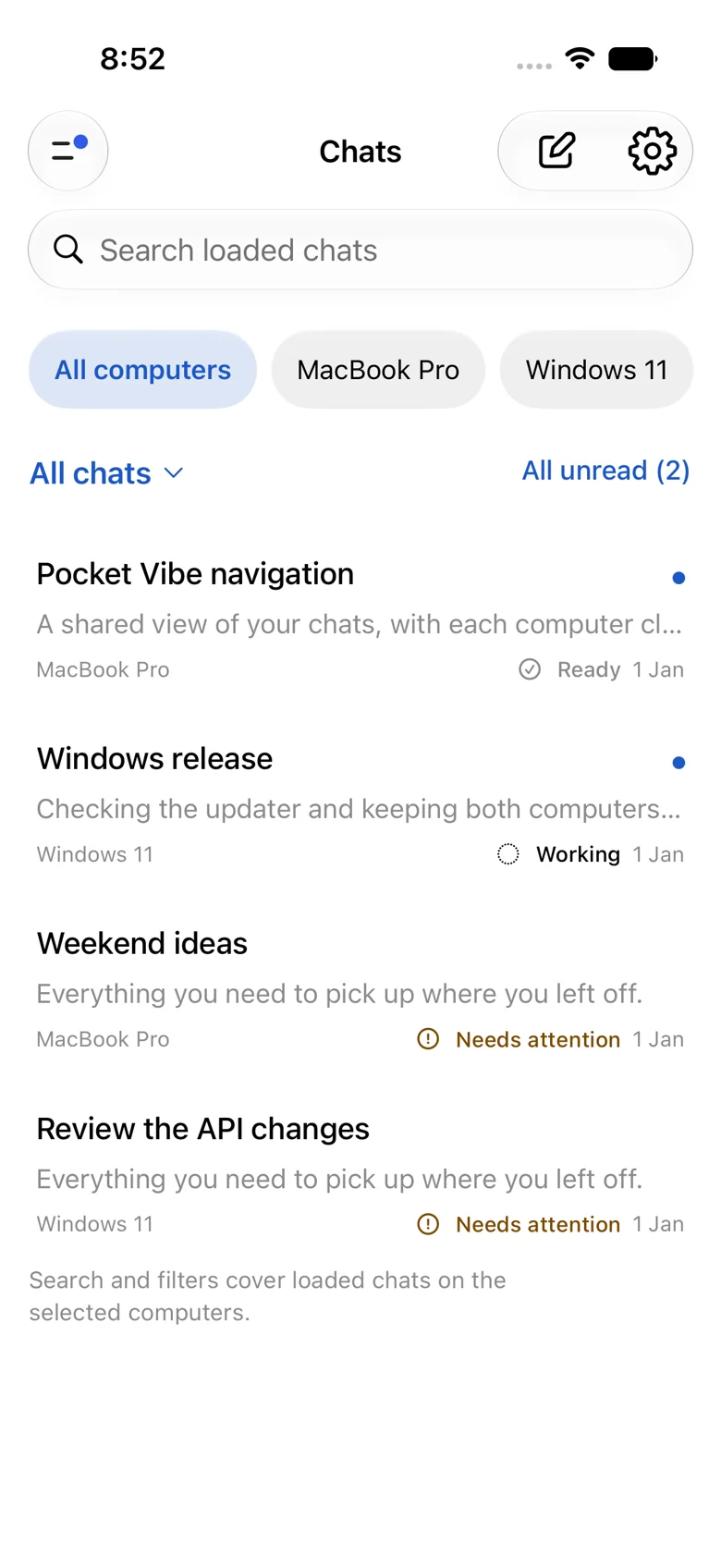
Chat list: press and hold a chat, or swipe left, for Rename, Archive on supported computers, and notification controls.
Chat menu: notifications and Open on computer.
Settings: connections, subscription, notifications and browser preferences.
ONLY WHEN YOU NEED IT
Open a topic. The rest can wait.
Archived chats and their Goals are excluded after synchronization. Restoring a chat on the desktop makes it eligible to appear again. Search is not a full-text search of every conversation on the computer.
In Chats, press and hold a chat, or swipe left on its row, then choose Rename or Archive.
Archive appears only when the selected computer reports support. Keep the iPhone app and its Mac or Windows companion current. Mac requires macOS 15 or later and its included authorized helper. Windows uses its native desktop integration.
There is no archived-chat browser or restore control on iPhone. Restore a chat in Codex on its computer to make it eligible to appear again after synchronization.
With multiple computers, Chats opens to All computers. Use the computer scopes above the list or in the sidebar to narrow it down. Computer avatars identify the source of each chat. The scopes are hidden when only one computer is saved. Choosing a computer opens its chat list, never its last chat automatically.
Inside a conversation, open the sidebar at the top left or tap its title to switch directly to another loaded chat on any paired computer. Search sits above recent chats. Each list scope keeps its query, filter and reading position. Draft text, selected Skills and prepared images are saved separately for each computer and chat on your iPhone.
Open Settings from the sidebar to manage the computers listed under Connections. Add a computer, swipe its row to rename it, or use Edit to reorder. Tap a computer for connection details and updates. Managing a different computer keeps your current chat and its draft in place. An offline computer keeps its saved chats available while you use other computers. Goal and Screenshots retain their explicitly named active computer.
Tap the model and effort values beside the message input to change the next turn. A running turn keeps its current settings. These controls use the models and effort levels available on the selected computer.
Tap New chat at the top right of Chats or a conversation, or in the sidebar. When you are viewing one computer, it is selected for the new chat. From All computers, choose the computer first. Select an existing desktop Project if needed, then start typing in the familiar chat composer. At the end of a conversation, you can also pull up until New chat is ready, then release. Pull back to cancel. Permissions, model and effort start with the computer’s defaults and can be changed before you send. Your computer supplies the connected model provider.
Tap the permission value beside the input to change access. If the menu does not fit on screen, scroll to reach every permission and its description. Model, effort and permission values are cached for up to a day and update when you change them on your phone. Use Refresh from computer when you want a fresh read. Custom means the computer reported a custom configuration, not that the value is still loading.
Changes apply from the next turn. Changing permissions does not resolve a request already waiting for approval.
Tap + → Skills beside the message composer, or type / or $ to find skills from the selected chat's directory. Choose a suggestion to insert its mention and include the selected Skill with your message. Existing draft text is preserved.
Skill suggestions require a compatible, online computer and current iPhone app. The list comes from the selected computer, so Mac and Windows can have different installed skills.
Pocket Vibe displays native Goal data without making extra model calls to analyze it. A finished reply does not mean the Goal is complete, and one execution plan is not an overall progress percentage. Edit, pause or complete a Goal through its desktop conversation. Only the current Goal retained for each chat is shown, not a permanent archive of past Goals.
Approval decisions require confirmation. Closing a sheet submits nothing. Full access for files and commands is separate from Computer Use app access. Other request types, sign-in challenges and system permission prompts may still need action on the computer. Saved-rule and app-access behavior depend on the desktop build, and real permission persistence remains a beta validation area.
Phone reads do not mark the desktop app's native chat as read. Alerts depend on notification permission, Apple delivery and the computer being available. An outage can miss a completion. Muting is useful for recurring check-in chats.
Captures contain the supported chat window, not the entire desktop. The window must be on screen. On Mac, grant Screen Recording permission. On Windows, keep the window visible and not minimized. The captured chat is the one open on the computer. This is on-demand capture, not live video or remote desktop scrolling.
Tap an explicit local file link in an assistant message to preview the file from the computer. Markdown renders with headings, lists, code and tables. Text and source files remain selectable. PDF, images and supported Office files use the iOS system preview.
The computer must be online. Markdown and UTF-8 text previews are limited to 512 KiB, and binary previews to 4 MiB. Previewing is read-only. Local links inside a previewed document, embedded Markdown attachments, folder browsing and file editing are not supported. These previews are not an offline document library.
Free includes all features and 2 computers. An optional Pro subscription increases the limit to 5 computers. Open Settings → Connections → Add another computer and repeat the new-computer connection flow. Use the computer filters in Chats, or choose a computer in the sidebar to open its chat list. Use Edit beside Connections to reorder saved computers. All computers stays first.
Chats, cached history, drafts, sends and unread state stay separate for each computer. Notifications can arrive from either, and tapping one selects the correct source. Screenshots share one library with source labels on new captures.
Open Paired iPhones → Add iPhone on the computer’s main page on your computer and create a device invitation. On the new phone, choose Scan computer QR code to verify and connect automatically. The invitation is single-use and expires after ten minutes. Existing phones stay connected. Paired iPhones lists authorized phones and their online status. Disconnect revokes only the selected phone, which must pair again to reconnect. To replace a phone, add the new one and explicitly disconnect the old one. Reading and muting chats stay separate for each phone.
Disconnecting one phone does not release the computer’s subscription place. To remove an old computer from your subscription, use Subscription → Computer places → Free place.
Open Settings → Subscription → Computer places on iPhone and choose Free place. You can request this even when the old computer is offline. Its access is revoked before the place becomes available again. Original desktop chats and saved iPhone screenshots remain.
Free includes all features on two computers. Pro adds places for five computers with monthly or annual billing. After Pro ends, the first two listed computers stay usable. Remove an unwanted computer to use the next one. Saved computer records and chats are kept. Deactivation and disconnecting are not subscription cancellation. Manage or cancel billing in your Apple Account. Public pricing and availability will be announced when enrollment opens.
Original conversations and model credentials stay with your desktop software. Pocket Vibe does not ask for your model API key. Current iPhone and computer connections use end-to-end encryption. Direct uses the local network and Relay forwards the same encrypted content. The relay cannot decrypt chats, attachments, documents or screenshots.
The service retains connection, subscription, routing and limited delivery metadata. Notification titles are encrypted for your iPhone and decrypted locally. The service cannot read them, and message previews are not included. Signed access leases last at most two hours and renew ten minutes before expiry, including while Direct is active. Earlier releases used relay-terminated TLS, and encryption does not retroactively erase older records.
The iPhone keeps a protected cache of viewed chats and image previews, limited to 64 MiB and subject to eviction. Saved screenshots remain until you delete them. Documents are previewed on demand. There are no advertising or analytics SDKs, and Pocket Vibe does not use your chat content to train models. Your selected model provider has its own policies.
Read the privacy policy for storage, retention, deletion and permission choices.
IF YOU GET STUCK
No. Open Settings from the iPhone sidebar, choose the computer under Connections, check its status and use Retry when disconnected. On the computer, confirm Pocket Vibe and the desktop chat app are running and the computer is awake and online. A temporary outage does not invalidate pairing. Cached messages remain readable.
Check the selected computer and filter, then use Load older chats for that computer. Search and ordinary filters cover loaded chats. Archived chats, background execution records and subagent records are excluded. Restore an archived chat on the desktop if you need it again.
Open Settings → Notifications to check iOS permission and delivery status across computers, and check the chat's mute setting. The computer needs to be running to observe work. Focus and Scheduled Summary can delay presentation. Apple accepting a notification does not guarantee an immediate banner.
Permission changes apply to the next turn and do not answer existing approvals. Open the command or app-access approval card and review its choices. Computer Use app access is separate from file and command permissions. Unsupported requests and local system prompts still need the computer.
Each library image is a saved capture. Request a new one for the current window. First use Open on computer for the intended chat, ensure the intended Codex window is visible and not minimized, and check Pocket Vibe's Screen Recording permission on Mac. Enlarging an old capture cannot add detail.
There is no Intel Mac companion, general remote desktop control, continuous screen streaming, remote desktop scrolling, arbitrary file browsing or file editing. Browsing and restoring archived chats still require the computer. You can archive a chat from the iPhone list on supported computers. Native desktop unread status is not changed by phone reads. Not every desktop approval type is supported, and the Goal view is not a separate Todo manager.
Email support@changhai.me with your iPhone app, computer companion and desktop chat app versions, what happened and the approximate time. Keep access tokens, pairing codes, API keys and private chat contents out of support messages.
Open the support page →